
Usage#
All algorithms in HedgeTools are accessible through the HedgeToolsApp class, which initializes a QgisApplication.
You can set the debug_mode parameter to True to display the full stack trace in case of an error.
Additionally, the use_canvas parameter allows you to open a minimalist map canvas inside your IDE to quickly visualize your results.
Since HedgeTools is installed within the QGIS plugin folder, you must first add it to your Python sys.path before importing it. For example:
import sys
import platform
sys.path.append(".../python/plugins/")
# Access within QGIS with Settings > User profiles > Open active profile folder
#Then in the window : python > plugins
from hedge_tools.hedgetools_app import HedgeToolsApp

# HedgeToolsApp may need to access the processing library
# Usually it can be found in the following path :
if platform == "linux":
    processing_path = "/usr/share/qgis/python/plugins"
elif platform == "win32":
    processing_path = r"C:\OSGeo4W\apps\qgis-ltr\python\plugins\processing"

debug_mode = False
app = HedgeToolsApp(processing_path, use_canvas=True, debug_mode=debug_mode)
# Basic QGIS import to load our layers
from qgis.core import (
    QgsRasterLayer,
    QgsVectorLayer,
    QgsPointCloudLayer,
    QgsFeatureRequest
)
Now you just have to load your layers and you are good to go.
# Load a raster
mnh  = QgsRasterLayer("path/to/file.tif", "name", "gdal")

# Load a lidar tile
las = QgsPointCloudLayer("path/to/file.las", "name", "pdal")

# Load a vector file
hedge = QgsVectorLayer("path/to/file.gpkg", "name", "ogr")

# Load a specific layer inside a gpkg
polygon_lyr = QgsVectorLayer("path/to/file.gpkg|layername=polygon", "name", "ogr")
arc_lyr = QgsVectorLayer("path/to/file.gpkg|layername=arc", "name", "ogr")
node_lyr = QgsVectorLayer("path/to/file.gpkg|layername=node", "name", "ogr")
Algorithms handle temporary outputs in the same way as QGIS, or you can specify an explicit output file.
All algorithm outputs are returned as a dictionary
results = app.strata_proportion(hedge, mnh, bins=[0,5,7.5,10,15])
09:24:01 [INFO] Starting algorithm: STRATA PROPORTION
09:24:11 [INFO] Creating strata ...
09:25:39 [INFO] Computing strata statistics ...
09:25:51 [INFO] Formating output ...
09:25:51 [INFO] Completed algorithm: STRATA PROPORTION in 0:01:49
Algorithms handles feature request. When multiple layers are provided the request apply to the first layer.
request = QgsFeatureRequest().setFilterFids([21])
results = app.topological_arc(hedge, request=request)
12:16:54 [INFO] Starting algorithm: TOPOLOGICAL ARC
12:16:55 [INFO] The following fields will be overwrite: pid
12:16:55 [INFO] Computing median axis ...
12:16:55 [INFO] Completed algorithm: TOPOLOGICAL ARC in 0:00:00
request = QgsFeatureRequest().setFilterExpression("$area < 1000")
results = app.topological_polygon(hedge, arc_lyr, node_lyr, request=request)
12:23:53 [INFO] Starting algorithm: TOPOLOGICAL POLYGON
12:23:53 [INFO] Computing topological polygons ...
12:23:53 [INFO] Creating cutlines ...
12:23:53 [INFO] Optimising cutlines ...
12:23:53 [INFO] Validating cutlines ...
12:23:53 [INFO]     Cutlines intersection correction ...
12:23:53 [INFO] Splitting polygons ...
12:23:54 [INFO] Updating PK/FK ...
12:23:54 [INFO] Completed algorithm: TOPOLOGICAL POLYGON in 0:00:00
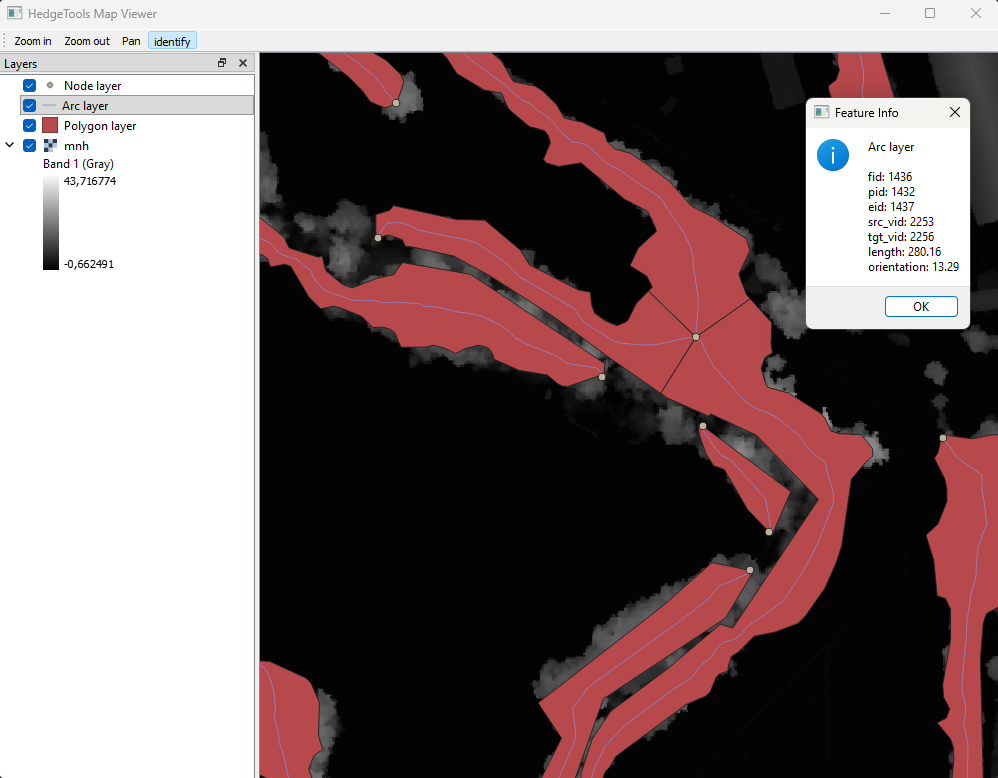
You can load a minimalistic canvas to inspect your layers, especially temporary layer that you don’t want to save to load within QGIS interface.
app.canvas.load_layers([polygon_lyr, arc_lyr, node_lyr, mnh])
app.canvas.show
from IPython.display import Image, display
display(Image(filename="../../images/canvas.png"))

app.exit